

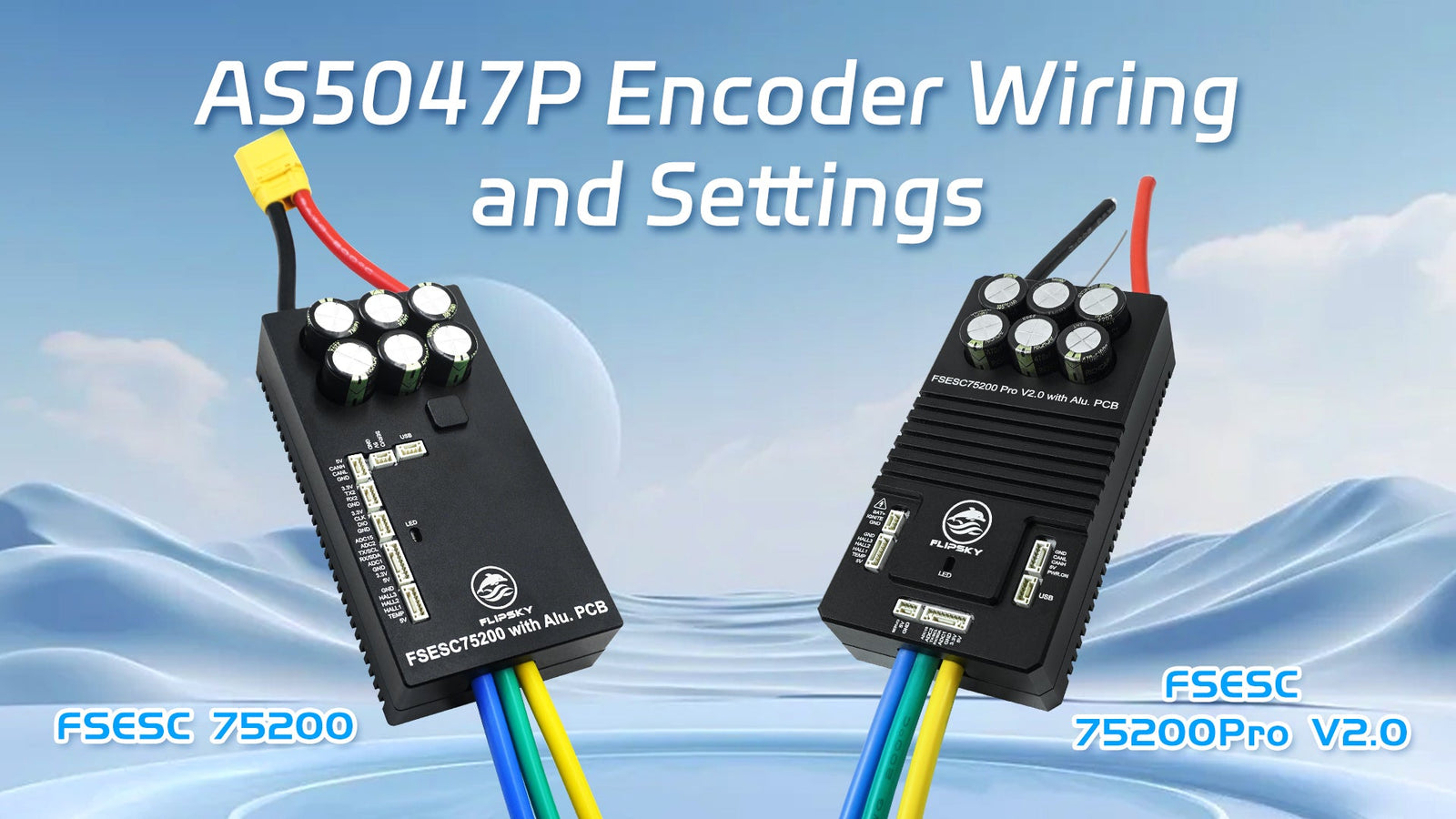
Flipsky FSESC 75200Pro V2.0 and 75200 AS5047P Encoder Wiring and Settings
Wirings diagram:

Remove some capacitors and resistors as below:
1) Remove the hall sensor 10nF filter capacitor on H1(A),H2(B),H3(C)
2) Replace the 2.2KΩ resistors to be 0Ω resistors on the H1 (A), H2 (B),and H3 (C)


Wiring
1.Connect the FSESC75200Pro V2.0(75200) with the motor
2.Connect the FSESC75200Pro V2.0(75200) with PC via USB cable
3.Connect the FSESC75200Pro V2.0(75200) with the battery
4.Connect the FSESC75200Pro V2.0(75200) with encoder AS5047P/ AS5048.
Matching pins as belows:
| FSESC 75200Pro V2.0/75200 | AS5047P/ AS5048 Encoder(SPI Interface) |
| 3.3V | 3.3V |
| GND | GND |
| H1(A) | CS |
| H2(B) | MISO |
| H3(C) | SCK |
| 3.3V | MOSI |


Notes: Please connect all parts well before power on.
Settings:
Step 1: Click “AutoConnect” to connect the esc with vesc_tool.

Step 2: Click “Setup Motors FOC” to do motor FOC settings.

Step 3: Select an option according to the specifications of your motor--->“Next”.

Step 4: Write “Battery Type”, “Battery Cells Series”, and “Battery Capacity” per battery specification-->“Next”.

Step 5: Write correct motor and wheel pulley teeth q’ty and wheel diameter. If no pulleys, tick "Direct Drive"-->click "Run Detection (no CAN)" or "Run Detection"

Step 6: Check the motor detection data to see if normal.

Encoder Data Check
Step 1: Click Motor Settings -> General -> General to check the “Sensor Port Mode” and see if related Encoder and ABI Encoder Counts shows.

Step 2: Click Motor Settings -> FOC -> General to make sure the Sensor Mode “Encoder”.

Step 3: Click “APP Settings”--> “APP to Use” to "UART" for keyboard control.

Step 4:Click Data Analysis --> Realtime Data--> Rotor Position-->Encoder for check.

Step 5: Rotate the motor by hand to see if the encoder data normal or abnormal.


Thank you for watching, please follow our social media for more information:
YouTube:https://www.youtube.com/c/FlipskyTech/
Instagram:https://www.instagram.com/flipsky_tech/
Facebook: https://www.facebook.com/FlipskyTech





Leave a comment